¶ Obtaining an account
To gain access to one of the HPC systems you must first apply for Preparatory or Production Access. More details on how to do that can be found in the "Apply" page.
Upon acceptance of your application you should request an account following the below steps:
- If this is the first time you are applying for access you need to submit the "Request an account" form through our helpdesk system's portal. You first need to create an account to the portal and then proceed with completing the below form:
Request an account
- If you already have an account on one of our HPC systems and you would like to associate your existing account with a new project you need to submit the "Add existing user account to project" form:
Add existing user account to project
- For Production Access, as "Proposal ID" put the project code (eg. lspre100s1) corresponding to your application submission in the Linklings system. For Preparatory or Educational access as "Project ID" type the ticket number e.g. "HPCF-1510". For other access type "Other Access".
Please note:
- You will not be granted a user account on a HPC resource if you have not completed this form.
- Each accepted project is allocated a specific HPC site, you will only be allowed access to your projects allocated site(s)
- You will not be granted access unless you are registered as a collaborator in an accepted production or preparatory project. Additional collaborators (not registered in the original proposal) can only be registered by the project leader by contacting hpc.support@cyi.ac.cy
- If you are permitted access to more than one HPC resource you will have to complete the form for each permitted site – each time choosing the appropriate (and different) HPC resource you are entitled to use.
Once the above has been done, you will be contacted by the HPC Facility team for your login details.
¶ Generating SSH keys
In order to generate a SSH key pair follow the below steps:
¶ Linux/Mac
Create a public and private key pair using the following command:
ssh-keygen
You will prompted for a filename for saving the private key. You should press Enter to use the default name: /home/username/.ssh/id_rsa
You will prompted for a password to protect your private key which you will also confirm. ALWAYS use such a password to protect your private key. ssh-keygen will then create a private and public key. The public key will have a .pub extension (e.g., id_rsa.pub)
¶ Windows
¶ Using PuTTYgen
- Download the PuTTYgen tool here
- Run the tool executable (puttygen.exe)
- Click Generate
- Move your mouse over the blank area
- Add a passphrase to your key in the Key passphrase and Confirm passphrase boxes.
- Save your key pair by clicking the Save public key and Save private key buttons. The private key will have a .ppk extension (e.g. private_key.ppk)
¶ Using OpenSSH
First check if the OpenSSH client is installed.
- Open the Settings panel, then click Apps.
- Under the Apps and Features heading, click Optional Features.
- Scroll down the list to see if OpenSSH Client is listed.
- If it's not, click the plus-sign next to Add a feature.
- Scroll through the list to find and select OpenSSH Client.
- Finally, click Install.
Then open the OpenSSH client and proceed with the key generation:
- Press the Windows key type cmd.
- Under Best Match, right-click Command Prompt. Click Run as Administrator.
- If prompted, click Yes in the Do you want to allow this app to make changes to your device? pop-up.
- In the command prompt type:
ssh-keygen - By default, the system will save the keys to C:\Users\your_username.ssh\id_rsa. You can use the default name, or you can choose more descriptive names. This can help distinguish between keys, if you are using multiple key pairs. To stick to the default option, press Enter. Note: If a file with the same name already exists, you will be asked whether you want to overwrite the file.
- You'll be asked to enter a passphrase. Enter a safe passphrase.
- The system will generate the key pair, and display the key fingerprint and a randomart image.
- Open your file browser.
- Navigate to C:\Users\your_username.ssh.
- You should see two files. The identification is saved in the id_rsa file and the public key is labeled id_rsa.pub. This is your SSH key pair.
Note: Normally, the public key is identified with the .pub extension. You can use Notepad to see the contents of both the private and public key.
¶ HPC systems hostnames
The table below lists the hostnames of the HPC systems login nodes:
| System | Hostname |
|---|---|
| Cyclone | cyclone.hpcf.cyi.ac.cy |
| post02 | post02.cyi.ac.cy |
| post05 | post05.cytera.cyi.ac.cy |
¶ HPC systems login
¶ Linux/Mac
If your private key is stored in your .ssh folder in your home directory:
$ssh username@hostnameYou may need to use the following command even if the private key is stored in your .ssh folder:
$ssh-add /key_path/id_rsaIf the key is stored in another directory or in a usb:
$ssh -i /key_path/id_rsa username@hostnameIf you encounter a problem with your key permissions, go to the directory where the key is stored and do the following:
$chmod 600 .ssh/id_rsaAs hostname use one of the hostnames in the above section, depending which system you want to access.
¶ Windows
¶ Using PuTTY
- Download PuTTY here.
- Run the executable (putty.exe)
- Browse for and select your private key file.
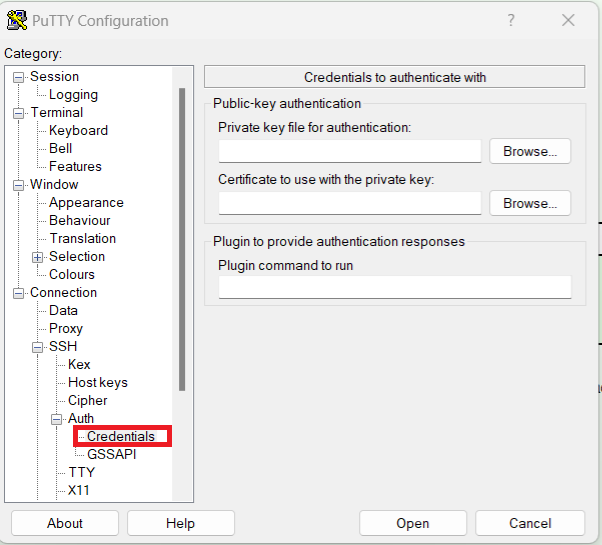
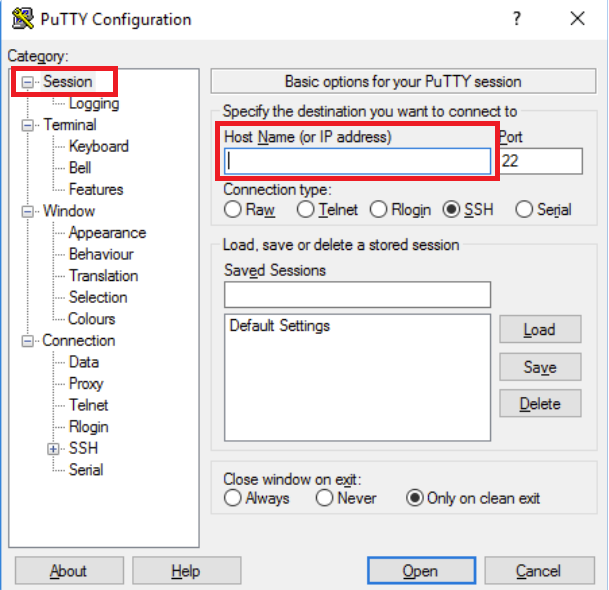
4. Enter login information in the Host Name box (e.g. username@hostname) and click Open
¶ Using OpenSSH
1. Make sure the ssh-agent service is running by using the following command in powershell:
Get-service ssh-agent

2. If the service is not running you need to go to Services and find OpenSSH Authentication Agent. Right click > Properties and change the Startup type to Manual or Automatic, apply the changes and then click start.
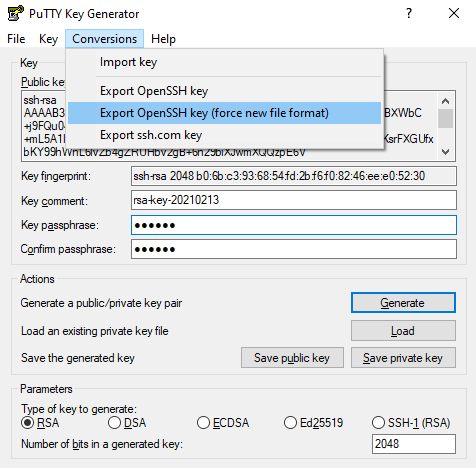
3. If you have created your key using puTTY you will need to save it using the openssh format. Open puTTYgen.exe and load your key by navigating to File > Load private key. Then under conversions select Export OpenSSH key( force new format).
After starting the ssh-agent service you need to add your private key to the agent. You will be asked for your key's passphrase before it is added to the agent.
ssh-add C:\DIRECTORY\WITH\KEY\id_rsa

5. If you receive the following error, you need to change the permissions of the key by right clicking the key file going to Properties > Security > Advanced and removing all other user permissions.

Finally to connect to your chosen cluster you need to type:
ssh username@cluster.host.name